Pick the path
| Machine | Take this |
|---|---|
| Windows 10/11 x64 with winget | winget install -e --id FreeCAD.FreeCAD |
| Windows x64 without winget | FreeCAD_*-Windows-x86_64-*-installer.exe from GitHub or freecad.org |
| Archive preference | matching .7z on the same tag (supporting) |
Skip the wrong doors
Skip Softonic-style wrappers and renamed setup ads. Related: download safe, releases, Windows install, exe or winget.
Pick the asset for the PC in front of you
On a normal 64-bit Windows PC you control, take the Windows x64 installer or run winget with FreeCAD.FreeCAD. That path finishes a Nullsoft setup and matches the primary InstallerUrl family in microsoft/winget-pkgs. The 7z archive is supporting when you prefer an unpacked layout on the same tag.
Borrowed lab images may block unknown executables or winget entirely. Stop rather than force a wrapper installer from a search ad. Use a machine you control when you need a clean FreeCAD path. Policy blocks are a reason to wait, not a reason to grab a renamed exe.
GPU drivers matter for the first 3D view. If the viewport stays black after a clean install, fix OpenGL on Windows before you download a second copy of the app. Graphics trouble is a driver problem first.
Winget versus manual installer
Choose winget when App Installer is present and your org allows catalog installs. Choose the GitHub or freecad.org installer when winget is missing or lagged. Both doors should land the same Windows x64 installer family when current. Cad software maintenance stays boring when you keep one door for upgrades.
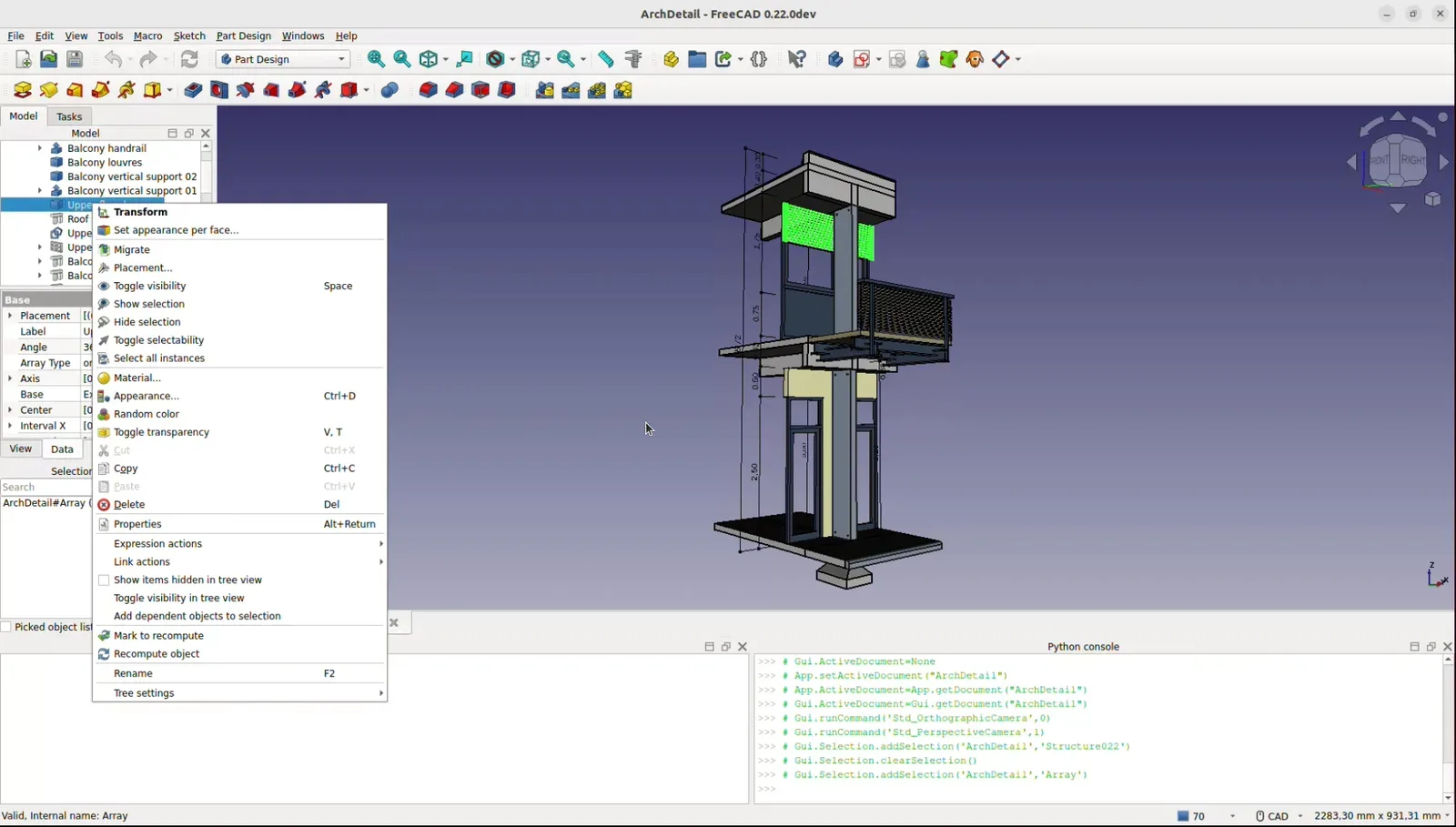
Expect elevation for all-users installs. After setup, open Part Design, pad a spare solid, and save an FCStd before you chase Addon Manager packs. First hour notes: installed. Installer chooser: exe or winget.
After the window opens
Confirm the workbench selector and model tree appear. Save documents to a folder you own. Export STL only after the editable FCStd is right. Drawings can wait on TechDraw until a simple solid exists. Guides: Part Design, export STL, TechDraw, workbenches.
Related cluster pages: releases, GitHub, download safe, how to install winget. Home keeps the winget Copy control for the default catalog path.
Lab images, Intune, and home PCs
Home PCs you administer can use winget or the GitHub installer freely. School or workplace images may already pin FreeCAD under an internal catalog name through Intune or another software center. Follow that catalog when it is required, and still read upstream licence text on FreeCAD/FreeCAD when you need to know what LGPL-2.1 allows.
If the software center blocks unknown executables, do not hunt Softonic-style wrappers as a bypass. Wait for an approved channel or use a machine you control. Cad software policy friction is a scheduling problem, not a reason to run a renamed setup.
On a PC you control, prefer FreeCAD.FreeCAD via winget when App Installer works. Otherwise take FreeCAD_*-Windows-x86_64-*-installer.exe from GitHub Releases or freecad.org. The 7z archive remains supporting for unpacked layouts on the same tag.
Prove the machine with one Part Design pad and an FCStd save before you install every workbench add-on you saw in a forum thread. Calm first hours prevent messy upgrade stories later.
Release notes and first saves
Keep release notes nearby when you change versions. Prefer the current maintenance line when opening models from unknown sources, then save your own FCStd documents before exporting meshes. Official wiki pages remain the deep reference for workbench details beyond this install map.
Shared files across a small team
When coworkers share models, ask which FreeCAD release created the file and whether the Windows build came from GitHub Releases, freecad.org, or winget. Matching upgrade doors across a small team prevents half the room from running a stale mirror copy. After any shared file lands, open it on a known-good install, save your own FCStd copy, and only then export meshes for printers or CAM tools.